

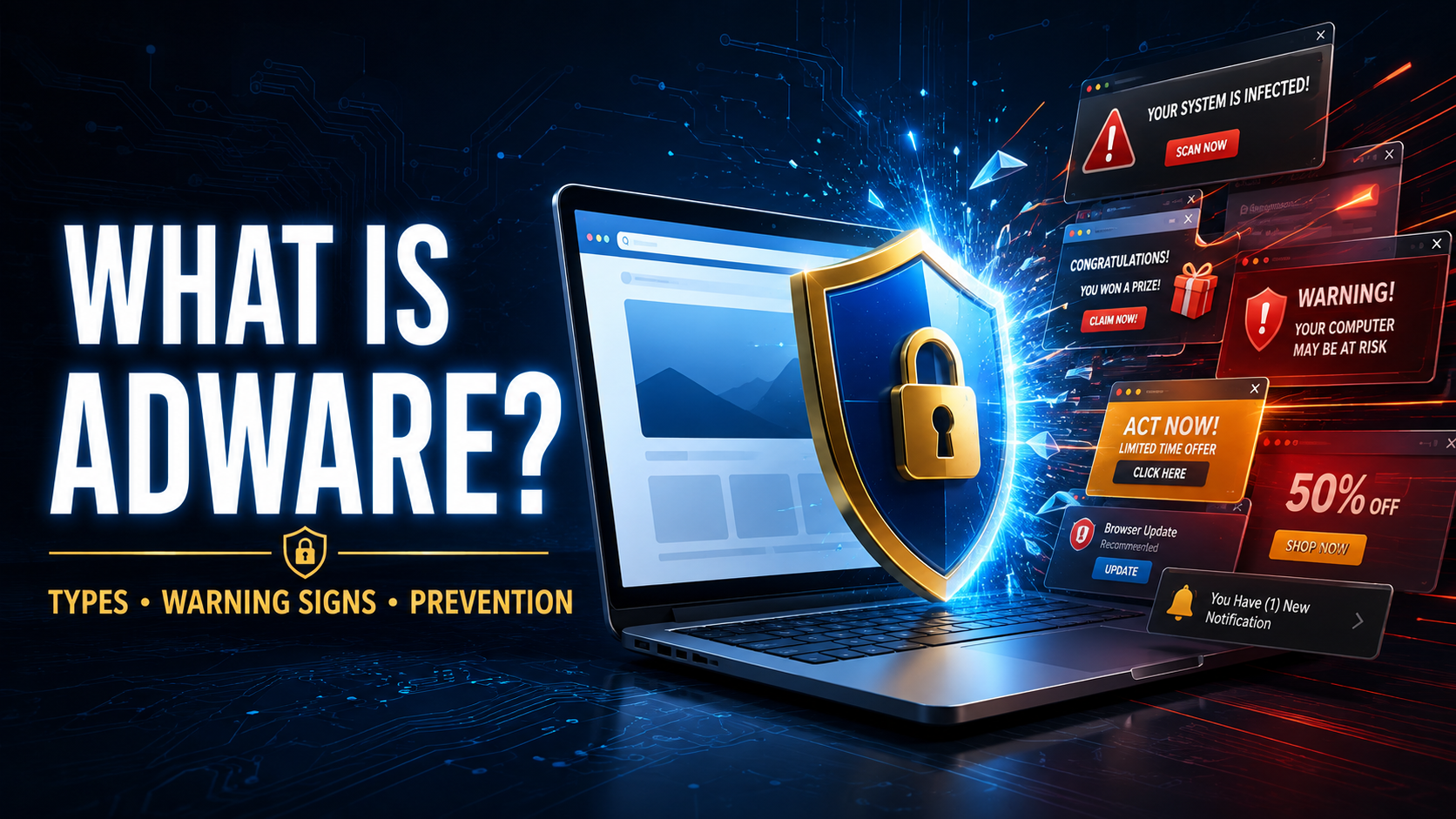
Online advertisements are a normal part of the internet. Websites and free applications often use advertising to pay for their services. Adware becomes a problem when the ads are excessive, deceptive, difficult to close, or displayed by software that a user did not knowingly choose to install.
An adware infection can fill a browser with pop-ups, redirect searches, change the homepage, install unwanted extensions, and collect information about browsing habits. Some versions are merely frustrating. Others expose users to phishing pages, technical-support scams, malicious downloads, and additional malware.
Knowing the difference between legitimate advertising and harmful ad-supported software makes it easier to recognize and remove the problem.
What Is Adware?
Adware is software designed to display advertisements on a computer, smartphone, tablet, or web browser.
Not all adware is automatically malicious. A free application may clearly explain that it displays ads, ask for informed consent, and provide an ordinary removal option. That business model is generally different from software that hides its purpose or takes control of the browser.
Problematic adware may:
- Display advertisements outside the original application
- Open pop-ups without permission
- Insert ads into unrelated websites
- Redirect searches
- Change browser settings
- Install unwanted extensions
- Track browsing behavior
- Download additional software
- Make removal intentionally difficult
Security products often classify such programs as potentially unwanted applications, or PUAs. Microsoft notes that these applications are not always malware, but they may display unwanted advertising, install unexpected programs, or perform other actions the user did not intend. Microsoft Support
How Does Adware Work?
Adware usually enters a device as part of another download. The installation may technically mention advertising features, but the information can be hidden inside a long agreement, confusing checkbox, or misleading button.
Once installed, adware may add background processes, browser extensions, startup tasks, notification permissions, or configuration profiles.
It can then examine information such as:
- Websites visited
- Search queries
- Advertisements clicked
- Approximate location
- Device type
- Browser version
- Installed applications
- Shopping interests
- IP address
- Referral information
The software uses this information to select advertisements or sends it to an advertising network. More aggressive adware may also redirect traffic through its own servers, replace legitimate ads, or send users to fraudulent websites.
Common Types of Adware
Browser Adware
Browser adware changes how advertisements appear during web browsing.
It may inject banners into pages, place promotional links inside ordinary text, open new tabs, or cover website content with pop-ups.
Browser adware commonly arrives through an unwanted extension or bundled software installation.
Pop-Up Adware
This type repeatedly displays pop-up windows, promotional notifications, or full-screen advertisements.
The ads may appear while browsing, when opening an application, or even when the browser is closed.
Search Hijacker
A search hijacker changes the browser’s default search engine and sends queries through an unfamiliar service.
The results may contain excessive sponsored listings or links selected to generate advertising revenue. Search hijackers can also monitor what users search for.
Browser Redirect Adware
Redirect adware sends users to websites they did not intend to visit.
A person may click one search result and land on an unrelated shopping page, fake security warning, gambling site, or technical-support scam.
Bundled Adware
Bundled adware is packaged with another application.
The primary software may be legitimate, but its installer also offers toolbars, optimizers, search tools, or other advertising-supported programs. These additions may be selected by default.
Mobile Adware
Mobile adware targets smartphones and tablets. It may display advertisements over other apps, generate lock-screen promotions, send unwanted notifications, or open browser pages.
A recently installed flashlight, wallpaper, game, cleaner, or utility app may be responsible.
Notification Adware
Some websites ask visitors to allow browser notifications. After permission is granted, the site can send messages directly to the desktop or phone.
Abusive notification campaigns may display fake virus warnings, adult content, prize scams, and fraudulent software updates even after the original website has been closed.
Advertising Spyware
Some adware monitors users so aggressively that it overlaps with spyware.
It may create detailed profiles, collect browsing history, monitor application use, or share information with third parties without meaningful consent.
How Does Adware Get Installed?
Free Software Bundles
Free applications sometimes include additional programs in their installers.
Users who select “Express,” “Recommended,” or “Quick” installation may unknowingly approve every bundled offer.
Fake Download Buttons
Download websites can contain several advertisements designed to look like the real download button.
Clicking the wrong one may install an advertising program or redirect the user to an unrelated installer.
Cracked Software
Cracked programs, game modifications, activation tools, and pirated applications frequently contain unwanted or malicious additions.
The distributor earns money by bundling advertising software or may use the download to install more serious malware.
Browser Extensions
Extensions promising coupons, video downloads, improved search, shopping comparisons, or browser customization may include advertising features.
An extension with permission to read and modify every website can inject ads into almost any page.
Fake Updates
A website may claim that the browser, media player, or operating system requires an update.
The downloaded installer may contain adware, spyware, or a Trojan rather than the promised update.
Misleading Advertisements
Some advertisements use warnings, countdowns, fake close buttons, and urgent claims to persuade users to install software.
A button marked “Cancel” or “Remove Virus” may actually begin a download.
Browser Notification Requests
A page may tell visitors to click “Allow” to confirm they are human, watch a video, or download a file.
The permission is actually used to send continuous advertising notifications.
Warning Signs of Adware
The clearest warning is a sudden increase in unwanted advertising. Other signs include:
- Pop-ups appearing repeatedly
- Ads showing on websites that normally contain few advertisements
- Browser searches going through an unfamiliar service
- Homepage changing without permission
- New browser extensions appearing
- Websites redirecting unexpectedly
- Browser opening tabs on its own
- Fake virus alerts
- Notifications from unknown websites
- Slow browser or device performance
- Applications crashing frequently
- Increased battery or data usage
- Unknown programs starting automatically
- Ads appearing outside the browser
- Familiar web pages looking different
- Close buttons that do not work
The FTC notes that malware can make a device slow, display unwanted ads, and direct users to websites they did not intend to visit. FTC Consumer Advice
Adware vs. Malware
Malware is software created to damage systems, steal information, disrupt activity, or provide unauthorized access.
Adware describes software whose main behavior involves advertising. Some adware is disclosed and relatively harmless, while malicious adware clearly falls within the broader malware category.
Security products may classify less dangerous versions as potentially unwanted applications rather than malware. The label does not mean the software should be ignored. A PUA can still weaken privacy, alter settings, reduce performance, and expose the user to unsafe content.
Adware vs. Spyware
Adware primarily displays advertisements. Spyware secretly monitors activity and collects information.
The distinction can become unclear because advertising software often tracks browsing habits to choose targeted ads. When tracking is excessive, hidden, or unrelated to the application’s stated purpose, adware may also function as spyware.
Adware vs. a Computer Virus
A computer virus attaches itself to files and can reproduce when those files run.
Adware does not normally spread by infecting other files. It is usually installed through software bundles, extensions, misleading links, or user-approved permissions.
Both can be unwanted, but they operate differently.
Are All Pop-Up Ads Caused by Adware?
No. A website can display a pop-up without installing anything on the device. Scam pages also use browser features to create fake system alerts.
If the pop-ups appear only on one particular website, the site itself may be responsible.
Adware is more likely when advertisements:
- Appear across many unrelated websites
- Continue after the original site is closed
- Show outside the browser
- Return whenever the device starts
- Affect every browser
- Are accompanied by changed settings or unknown applications
How to Remove Adware From a Computer
Disconnect From Suspicious Pages
Close suspicious tabs and applications. Do not click advertisements claiming that they will clean the device.
If a page prevents the browser from closing, use the operating system’s task manager or force-quit feature.
Review Installed Programs
Check applications installed around the time the problem began.
Remove software you do not recognize, no longer need, or downloaded from an unreliable source. Research unfamiliar entries before deleting them because some system components have unusual names.
Remove Browser Extensions
Open the extension or add-on manager for every installed browser.
Remove extensions that are unknown, unnecessary, or associated with the unwanted advertisements.
Revoke Notification Permissions
Review which websites are allowed to send notifications.
Block or remove unfamiliar sites, especially those sending prize messages, security warnings, adult advertisements, or download prompts.
Reset Browser Settings
Resetting the browser can restore the homepage, new-tab page, default search provider, content permissions, and other settings.
Back up important bookmarks first, and review what the reset will remove.
Clear Browser Data
Delete cookies, cached files, and website data associated with suspicious pages.
Clearing data alone will not remove an installed adware program, but it can remove stored permissions and redirect information.
Update Security Software
Install the latest security definitions and perform a complete system scan.
The FTC recommends updating security software and running a scan when malware is suspected. FTC
Enable PUA Protection
Some security products can detect and block potentially unwanted applications separately from traditional malware.
Windows includes reputation-based protection that can block unwanted applications and downloads. Microsoft Support
Restart and Check Again
Restart the computer after removing detected programs and extensions.
Check whether the homepage, search engine, advertisements, and notifications remain normal. If the symptoms return, another startup item or hidden program may still be present.
How to Remove Adware From a Phone
Identify Recently Installed Apps
Review applications installed shortly before the unwanted ads began.
A mobile adware app may use an ordinary name and icon, or it may hide its icon after installation.
Check Display-Over-Other-Apps Permission
On supported devices, review which applications can appear over other apps.
Remove this permission from programs that do not genuinely require it.
Review Notification History
Notification history can help identify the application responsible for an unwanted advertisement.
Long-pressing a notification may also reveal which app or website sent it.
Remove Suspicious Applications
Uninstall the responsible application through the device settings.
If removal is blocked, check whether the app has device-administrator or accessibility privileges and revoke unauthorized access.
Clear Browser Notifications
Review notification permissions inside the mobile browser and block unfamiliar websites.
Also clear suspicious browsing data if redirects continue.
Restart in Safe Mode
On some Android devices, safe mode temporarily prevents downloaded applications from running. This can make it easier to identify and uninstall problematic software.
Instructions vary by manufacturer and device version.
Factory Reset as a Last Resort
A factory reset can remove persistent adware, but it also erases personal information.
Back up important photographs, contacts, and documents first. Avoid automatically reinstalling every previous application, because the unwanted app may return with the backup.
What to Do If You Entered Information Into an Ad
Some adware advertisements lead to phishing pages or fake technical-support services.
If you entered a password, card number, banking information, or other private data:
- Close the page
- Use a trusted device to change the password
- Enable multi-factor authentication
- Contact the card issuer or bank
- Review recent account activity
- Remove unknown login sessions
- Monitor for identity theft
- Run a complete security scan
Do not call the phone number in a fake virus warning or give a stranger remote access to the device. The FTC warns that technical-support scammers use bogus alerts to obtain money, personal information, or remote control. FTC Tech Support Scams
How to Prevent Adware
Download From Official Sources
Use the application’s official website or a recognized app store.
Avoid third-party download sites that place advertising buttons around the real download link.
Choose Custom Installation
Select “Custom” or “Advanced” installation when available.
Read each screen and reject additional toolbars, search assistants, system optimizers, and unrelated applications.
Avoid Cracked Programs
Cracked applications and unofficial activation tools commonly include bundled or malicious software.
Even when the main program works, hidden components can remain active.
Review Browser Extensions
Install only extensions that are genuinely necessary.
Check the developer, user reviews, update history, privacy policy, and requested permissions. Remove extensions that are no longer used.
Keep the Browser Updated
Browser updates repair security weaknesses and improve protection against deceptive websites and malicious downloads.
Keep the operating system and other applications updated as well.
Use Real-Time Security Protection
Enable reputable antivirus or anti-malware protection and keep it updated.
Where available, turn on protection against potentially unwanted applications and suspicious downloads.
Be Careful With Pop-Ups
Do not trust a website simply because it displays an official-looking security warning.
A web page cannot normally perform a complete antivirus scan of the device. Run scans from security software installed through a trusted source.
Reject Unnecessary Notifications
A video, CAPTCHA, or download should not require permission to send continuous browser notifications.
Select “Block” when the request is unexpected or unrelated to the page’s function.
Use an Advertisement Blocker Carefully
A reputable content blocker can reduce exposure to misleading advertising and pop-ups.
Download it from the browser’s official extension store and confirm that it comes from the correct developer. Fake ad blockers can themselves contain adware.
Read Application Permissions
An ordinary game, wallpaper, or calculator should not require access to messages, contacts, accessibility services, or device administration.
Excessive permission requests are a reason to avoid the application.
Can Adware Steal Passwords?
Basic adware is mainly designed to display advertisements. More dangerous versions may track browsing, redirect users to fake login pages, or arrive with spyware capable of stealing credentials.
If adware was present while you used sensitive accounts, remove the infection and change important passwords from a trusted device.
Can Adware Damage a Computer?
Adware may not directly destroy files, but it can reduce performance, alter settings, weaken privacy, and expose users to malicious websites.
Poorly designed adware can also cause crashes, consume memory, use excessive network data, and make the browser difficult to use.
Does Antivirus Software Remove Adware?
Many security products detect malicious adware and potentially unwanted applications. Some PUA protection features must be enabled separately.
Security software may remove the main program while leaving browser settings, notification permissions, or extensions unchanged. Review those areas manually after the scan.
Will Resetting the Browser Remove Adware?
A browser reset can remove altered settings and may disable unwanted extensions. It will not necessarily remove adware installed as a separate application or system process.
For complete removal, inspect installed programs and run an updated security scan in addition to resetting the browser.
