

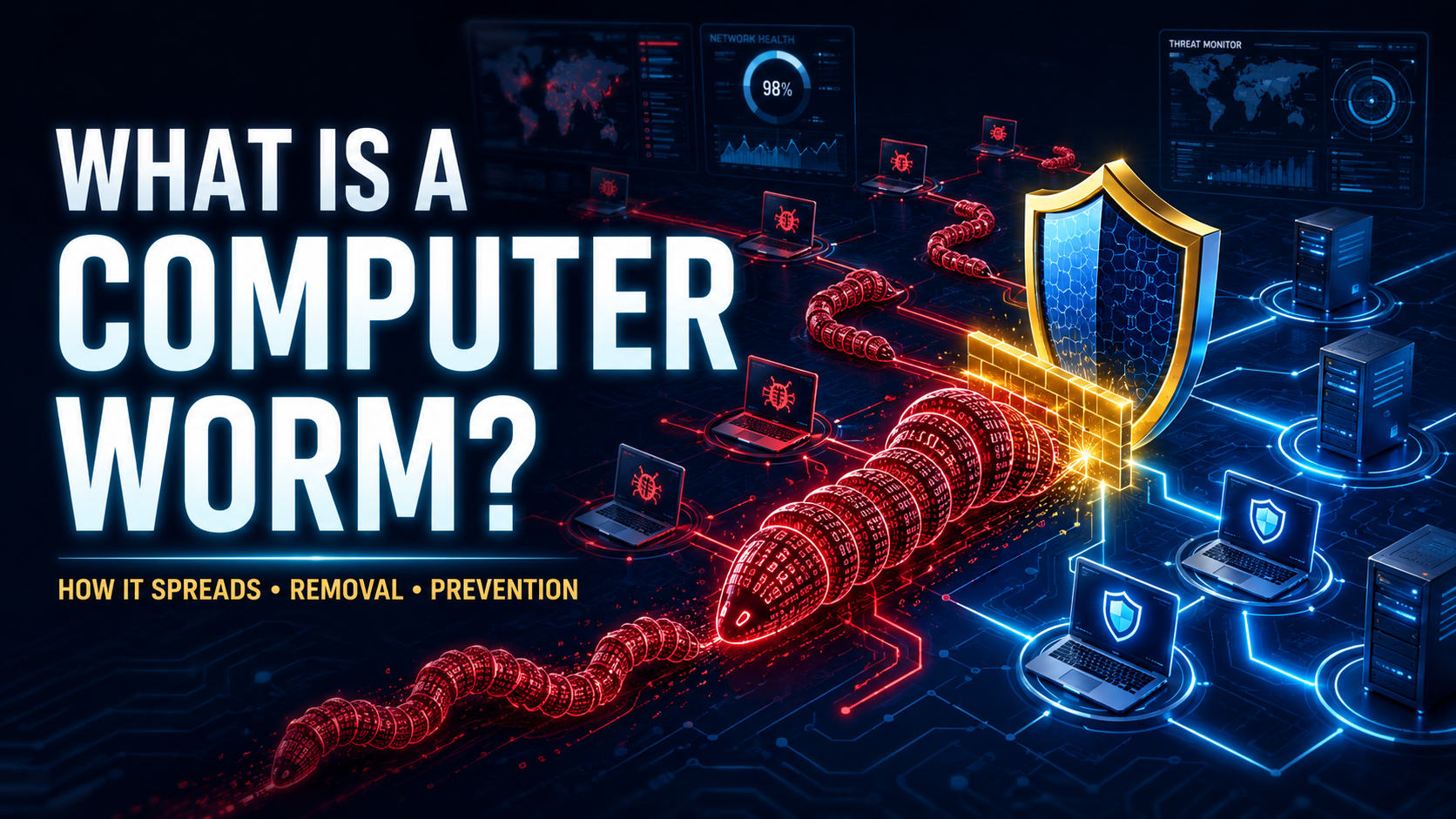
A computer worm can turn one infected device into hundreds or thousands of infections without waiting for each person to open the same file. Once active, it searches for new targets, copies itself, and continues spreading through networks, shared storage, messages, or vulnerable software.
This ability to move automatically makes a computer worm especially dangerous. Even a worm without a destructive payload can overwhelm networks, consume storage, and slow systems through constant replication. More harmful versions may install ransomware, steal passwords, create backdoors, or add infected devices to a botnet.
What Is a Computer Worm?
A computer worm is self-replicating malware that can copy itself and spread from one device to another.
Unlike a traditional computer virus, a worm does not need to attach itself to a host file. Many worms can spread without direct human interaction by exploiting security weaknesses or using accessible network services.
Microsoft defines a worm as malware that copies itself and often spreads through networks by exploiting vulnerabilities. Worms may also travel through email attachments, text messages, file-sharing platforms, social networks, shared folders, and removable drives. Microsoft Learn
A worm may be designed only to spread, but most real attacks use that access for additional purposes.
How Does a Computer Worm Work?
A typical worm infection follows several stages.
Initial Infection
The worm first reaches a vulnerable device.
This may happen through an unpatched software weakness, malicious attachment, infected USB drive, compromised download, or unsafe network service.
System Discovery
The worm examines the infected device and its network environment.
It may search for:
- Connected computers
- Shared folders
- Email addresses
- Contact lists
- Removable drives
- Vulnerable services
- Weak passwords
- Messaging applications
Replication
The worm creates one or more copies of itself.
Those copies may use different names or locations to reduce the chance of detection.
Automatic Spread
The worm sends or transfers its copies to new targets.
If the new device is vulnerable, the copy executes and begins the same process again.
Payload Execution
The worm may perform additional malicious actions, such as:
- Installing ransomware
- Stealing account credentials
- Opening a backdoor
- Deleting files
- Joining a botnet
- Launching denial-of-service attacks
- Disabling security tools
- Downloading other malware
This repeating cycle allows a worm outbreak to expand very quickly.
Common Types of Computer Worms
Network Worm
A network worm scans local or internet-connected systems for a particular vulnerability.
When it finds an exposed device, it exploits the weakness, installs a copy of itself, and begins searching from the newly infected machine.
Email Worm
An email worm uses email to reach new victims.
It may collect addresses stored on the infected computer and send copies of itself as attachments or malicious links. Messages can appear to come from someone the recipient knows, making them more convincing.
Instant-Messaging Worm
This type spreads through messaging applications, social-media messages, or collaboration platforms.
It may send a short message such as “Is this you?” or “Check this file” along with an infected attachment or link.
Internet Worm
An internet worm searches the public internet for vulnerable computers and servers.
It can spread without knowing the identity of the people who own those systems. Every newly infected device becomes another point from which to scan for targets.
File-Sharing Worm
A file-sharing worm places copies of itself in shared folders used by peer-to-peer services or business networks.
The malicious file may use an attractive name related to popular software, films, games, music, or confidential documents.
USB Worm
A USB worm copies itself to removable drives.
When an infected drive is connected to another computer, deceptive shortcuts, hidden files, or unsafe automatic-execution features may launch the malware.
Mobile Worm
A mobile worm targets smartphones or other portable devices.
It may spread through messaging links, malicious apps, wireless technologies, contact lists, or software vulnerabilities.
Cryptoworm
A cryptoworm combines worm-like spreading with ransomware.
It moves automatically through a network and encrypts files on each infected system. This combination can cause widespread disruption before administrators understand what is happening.
What Damage Can a Worm Cause?
A computer worm can cause problems simply through continuous replication.
Large numbers of copies may consume:
- Network bandwidth
- Processor resources
- Device memory
- Storage capacity
- Email-server capacity
- Security-team time
More advanced worms can also:
- Steal passwords
- Install spyware
- Encrypt files
- Disable antivirus software
- Create hidden administrator accounts
- Access shared business data
- Send spam
- Attack websites
- Download Trojans
- Spread misinformation through compromised accounts
- Interrupt critical operations
A worm outbreak inside a company can affect computers, servers, shared drives, and remote offices within a short period.
Computer Worm vs. Computer Virus
A computer virus attaches itself to another file or application. It usually activates when someone runs the infected host.
A worm is a standalone malicious program capable of making copies of itself. Many worms spread automatically without requiring someone to open each copy.
Both are malware, but worms are generally associated with faster network propagation.
Computer Worm vs. Trojan Horse
A Trojan horse pretends to be a legitimate program or file. It relies on deception to persuade someone to install it.
A worm is defined by its ability to self-replicate and spread.
A Trojan may deliver a worm, while a worm may install a Trojan after reaching a device.
Computer Worm vs. Ransomware
A worm describes the malware’s spreading behavior. Ransomware describes its purpose: blocking access, encrypting files, stealing data, and demanding payment.
Some ransomware has worm-like capabilities, allowing it to move across networks without requiring a separate installation on every device.
Computer Worm vs. Botnet
A botnet is a collection of compromised devices controlled by an attacker.
A worm may build a botnet by infecting devices and installing software that connects them to a command-and-control server.
The attacker can then use those devices for spam, fraud, cryptocurrency mining, or distributed denial-of-service attacks.
How Do Computer Worms Spread?
Software Vulnerabilities
Worms frequently exploit known weaknesses in operating systems, servers, applications, or network services.
An update may already be available, but devices that remain unpatched can still be vulnerable.
Weak Passwords
A worm may use lists of common passwords to access exposed remote services, administrator accounts, routers, and connected devices.
Default passwords create an especially easy target.
Email Attachments
Some worms send infected files to email addresses found on the compromised device.
The message may use the victim’s name or account, causing recipients to believe it is genuine.
Malicious Links
A message can direct the recipient to a website that downloads the worm or exploits a browser vulnerability.
The worm may then send the same link to the new victim’s contacts.
Network Shares
Poorly secured shared folders allow a worm to copy itself to other systems.
Files stored on a shared drive may then be opened by several users.
Removable Drives
Worms can place malicious files and shortcuts on USB drives and external disks.
Microsoft warns that many worms spread through infected removable drives and may install when those drives are connected to another computer. Microsoft Support
Untrusted Downloads
Cracked software, game modifications, key generators, pirated media, and unofficial installers can introduce a worm to the first device.
Once active, it may spread to other systems automatically.
Warning Signs of a Computer Worm
A worm attempts to spread, so unusual network and messaging activity are common warning signs.
Possible symptoms include:
- Internet connection becoming unusually slow
- Large amounts of unexplained network traffic
- Messages sent to contacts without permission
- Repeated delivery-failure emails
- Unknown files appearing on shared drives
- USB drives containing unfamiliar shortcuts
- Device becoming slow or unresponsive
- Storage space disappearing rapidly
- Security software being disabled
- Firewall settings changing
- Unknown background processes
- Frequent crashes or restarts
- Applications opening unexpectedly
- Increased processor or memory usage
- Other devices on the network showing similar problems
- Account-login alerts from unfamiliar locations
One slow computer does not necessarily indicate a worm. Several connected systems showing the same unusual behavior is a more serious warning.
What Should You Do During a Worm Outbreak?
Disconnect Infected Devices
Disconnect affected computers from Wi-Fi, Ethernet, shared storage, and removable drives.
CISA’s recovery guidance recommends removing network connectivity to limit an attacker’s or malicious program’s access to the device. CISA
Isolate the Network
Businesses may need to separate affected network segments, disable vulnerable services, and temporarily restrict remote access.
Avoid reconnecting cleaned devices until the original weakness has been fixed.
Notify Other Users
Warn people who may have received messages or files from the infected account.
Tell them not to open the content and to scan their own devices.
Contact the IT Team
Workplace infections should be reported immediately.
A worm can spread beyond the computer where the first symptoms appeared, so treating only one device may be insufficient.
Preserve Evidence
Record security alerts, unusual filenames, IP addresses, timestamps, affected devices, and other relevant information.
Organizations may need this evidence for investigation, insurance, legal obligations, or incident reporting.
How to Remove a Computer Worm
Update Security Tools
Use current antivirus or endpoint-security definitions.
A security product that has not been updated may fail to recognize a recently identified worm.
Run a Full Scan
Perform a complete scan of the affected device.
Quarantine or remove detected threats according to the security software’s instructions.
Scan Offline
Persistent malware may hide or defend itself while the normal operating system is running.
An offline or recovery-environment scan can inspect the system before many malicious processes start.
Scan Every Connected Device
A worm may already have spread to other computers, servers, removable drives, and shared storage.
Scanning only the first affected machine can allow reinfection.
Install the Relevant Security Patch
Removing the worm without repairing the vulnerability leaves the device exposed.
Install operating-system and application updates before reconnecting the system to the main network.
Change Compromised Passwords
Use a clean device to update passwords for affected accounts.
Prioritize email, administrator, remote-access, cloud-storage, and financial accounts. Enable multi-factor authentication where available.
Remove Unauthorized Accounts
Check for new administrator accounts, remote-access tools, scheduled tasks, startup items, and changed security settings.
A worm may install a backdoor that remains after its visible files are removed.
Restore From a Clean Backup
Replace damaged files using a backup created before the infection.
Scan the backup and confirm that the worm has been removed from the environment first.
Reinstall the Operating System
A clean installation may be appropriate when:
- The worm repeatedly returns
- Administrator access was compromised
- Several malware payloads were installed
- System files were damaged
- Security tools cannot confirm complete removal
What to Do After Removing a Worm
Before returning to normal activity:
- Update every device
- Confirm that antivirus protection is active
- Enable the firewall
- Scan removable drives
- Review administrator accounts
- Change exposed passwords
- Check email and messaging activity
- Close unnecessary network services
- Test clean backups
- Monitor network traffic
- Document the incident
Businesses should determine how the worm entered, which systems it reached, what data it accessed, and whether notification requirements apply.
How to Prevent Computer Worms
Install Updates Promptly
Apply security patches to operating systems, browsers, business applications, routers, servers, and connected devices.
Network worms frequently target known vulnerabilities for which fixes already exist.
Enable Automatic Updates
Automatic updates reduce the time a device remains exposed after a vulnerability is fixed.
Critical internet-facing systems should also be monitored to confirm that updates install successfully.
Use Updated Security Software
Enable reputable antivirus or endpoint protection and keep its security intelligence current.
Configure it to scan downloads, removable drives, email attachments, and suspicious processes.
Keep the Firewall Enabled
A firewall can block unnecessary incoming connections and limit some forms of unauthorized network access.
Businesses should restrict communication between network segments so one compromised device cannot reach every system.
Use Strong, Unique Passwords
Replace default passwords on routers, cameras, storage devices, and other connected equipment.
Use unique passwords and multi-factor authentication for remote-access and administrator accounts.
Secure Network Shares
Give users access only to the folders and files they genuinely need.
Avoid giving every account permission to modify all shared data.
Scan USB Drives
Do not connect unknown removable drives.
Disable automatic execution and scan trusted drives before opening their contents.
Be Careful With Messages
Do not open unexpected links or attachments merely because they appear to come from a known contact.
Confirm unusual messages through another communication method.
Disable Unused Services
Unnecessary remote-access tools, file-sharing services, and open network ports increase the available attack surface.
Disable them or restrict them to trusted devices.
Segment Business Networks
Separate critical servers, employee computers, guest Wi-Fi, backup systems, and internet-connected equipment where possible.
Segmentation can slow a worm and give defenders more time to respond.
Maintain Isolated Backups
Keep regular backups that cannot be changed directly by ordinary user accounts or infected devices.
Test the restoration process before an incident occurs.
Can a Worm Spread Through Wi-Fi?
Yes, if connected devices expose vulnerable services or weakly protected network shares.
The worm is not transmitted by the wireless signal itself. It uses the network connection to find and attack other accessible devices.
Strong router security, firewalls, software updates, and network segmentation reduce this risk.
Can a Worm Spread Without the Internet?
Yes. A worm can spread across a local network, through shared folders, or using infected USB drives even when no device has internet access.
Disconnecting the internet may stop external communication without completely stopping local propagation.
Can a Phone Get a Computer Worm?
Mobile devices can be targeted by self-spreading malware, although traditional computer worms are more commonly associated with desktop and server systems.
A mobile worm may use malicious messages, contacts, applications, wireless connections, or software vulnerabilities to reach other devices.
Does Antivirus Software Stop Worms?
Updated antivirus and endpoint-security software can detect and block many known worms.
However, a worm exploiting an unpatched network vulnerability may spread before a traditional file scan detects it. Effective protection also requires updates, firewalls, secure passwords, access controls, and network monitoring.
Will a Factory Reset Remove a Computer Worm?
A complete reset or clean operating-system installation removes most worms from the affected device.
The worm can return if another infected system remains on the network, a vulnerable service is still exposed, or an infected backup or USB drive is reconnected.
Every affected device and the original entry point must be addressed before normal network access is restored.
